For each agreement, list the additions with their quantity and unit price, then compare each quantity with what you deliver: managed devices from the RMM, licences from Microsoft 365 or the distributor, backup from the backup tool. Update additions that differ before you run the invoice batch.
01What to compare
| Addition type | Compare with |
|---|---|
| Managed workstations / servers | RMM device counts per client and type |
| Microsoft 365 seats | Tenant licence counts or distributor bill |
| Backup | Protected devices in the backup tool |
| Security | Active agents in the security console |
02Monthly steps
- Export agreement additions per company from ConnectWise PSA.
- Map companies to the RMM sites and accounting customers once.
- Compare quantities and list differences with their monthly value.
- Update additions, invoice, then check the invoice in accounting (with Xero or QuickBooks Online).
Billing & Reconciliation in Revtein
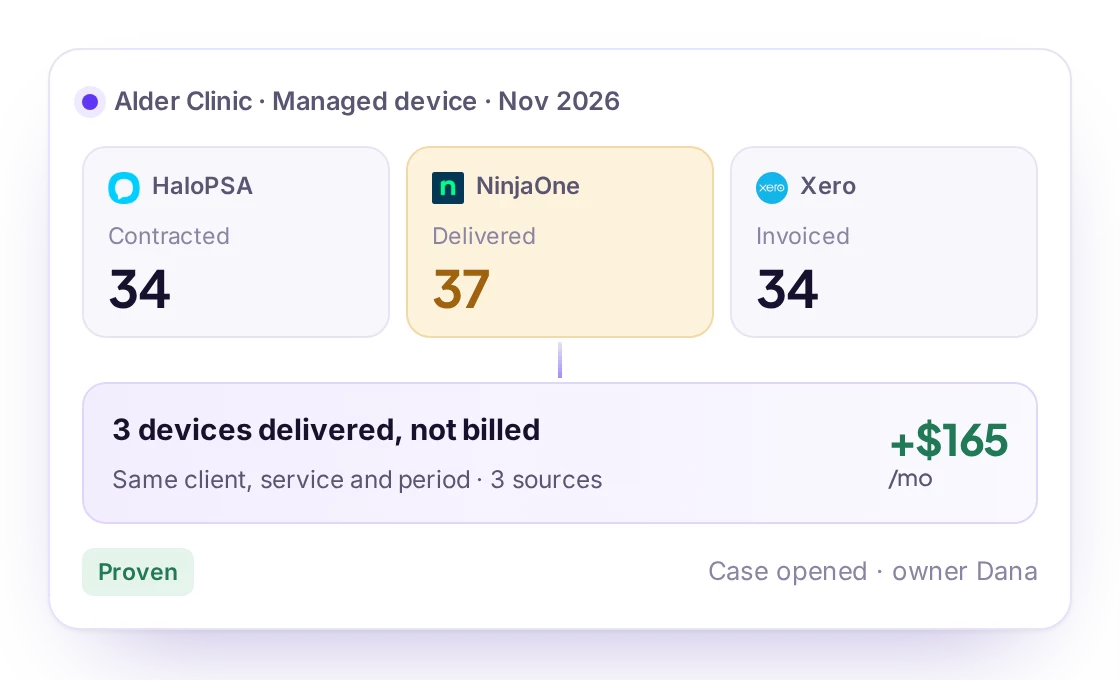
Revtein lines up contracted, delivered and invoiced quantities for every client, service and period, and walks your team through each difference until the source shows it is…
See how it works- Contracted34HaloPSAAgreement AG-2126 · recurring line 41081Nov 15, 9:20
- Delivered37NinjaOneApproved managed devices · org Alder ClinicNov 15, 9:18
- Invoiced34XeroINV-1042 · line Managed deviceNov 15, 9:21
03How Revtein helps
Revtein reads ConnectWise PSA, your RMM and accounting, and opens a case for each agreement whose quantity differs from delivery, with the exact values to update in ConnectWise; then it reads the PSA again to confirm. See MSP billing reconciliation and the ConnectWise PSA + NinjaOne pairing.
 HaloPSA
 ConnectWise PSA
 Datto Autotask
 Syncro
 Kaseya BMS
 Kaseya Vorex
 Pulseway PSA
 SuperOps PSA
 Freshservice