Setup guide
How to connect your tools to Revtein, step by step.
One system at a time, in any order. You create the access, Revtein reads first, and each connection tells you what it unlocks.
Before you start
- An admin login for your PSA, and ideally your RMM and accounting system
- A few minutes to create a dedicated API user or key in each tool
- No need to connect everything. Start with the PSA.
Connect
Choose where you manage clients and contracts.
Revtein starts with one question: where do you manage customers, contracts and recurring services? For most MSPs that is the PSA, such as HaloPSA, ConnectWise PSA, Autotask or Syncro. Pick it from the catalog in Data Sources, Add a source.
Authorize
Create access in your tool and paste it in.
Each tool asks for a little different detail, usually an instance address plus an API key or client ID. You create that access yourself, inside your own tool, with only the read permissions Revtein needs. Revtein shows the exact fields for each tool.
Sync
Revtein reads your records and tells you when.
After you save, Revtein reads clients, contracts, devices, invoices or protection data, depending on the tool. Every source shows its last complete read time, so you always know how fresh the data is.
Match customers
Confirm that the same client in two tools is one client.
Your PSA may call a client one thing and your accounting another. Revtein proposes matches, shows the evidence, and asks you to confirm. Unmatched records are listed in Mappings so none are lost.
Check coverage
See which checks are running and what to add next.
Coverage shows each check, such as billing against contract or backup against agreement, and whether the data it needs is connected. A hint tells you what the next source would unlock.
Which tools first
Three sources are enough to start.
To compare what a client contracted, what you deliver and what you invoiced, Revtein needs one source for each side.
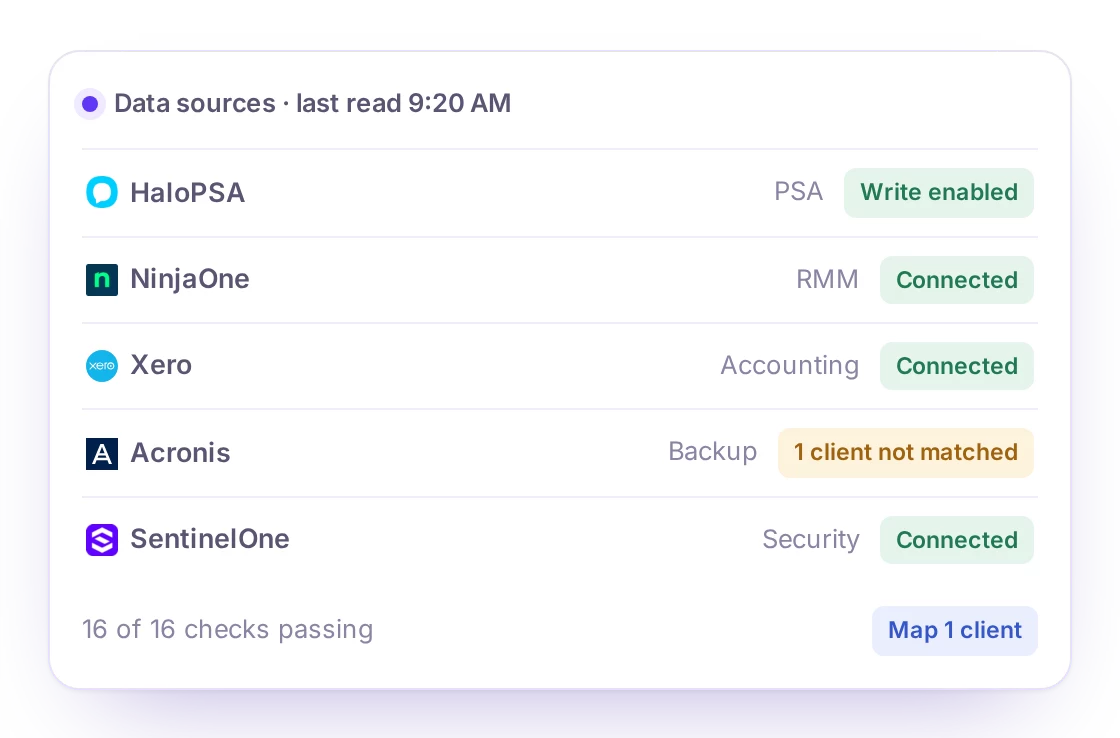
Reading and writing are separate
Every source shows one status word and what Revtein may change there: Write enabled, Write ready to enable, or Write not built yet. You decide when to switch writing on, one source at a time.
No connector? Import a file.
Upload a CSV or Excel export from the Imports tab. Revtein validates every row, lets you correct mappings and keeps the provenance. An import is never treated as a live synchronized source.
Setup questions
Is it safe to connect my PSA?
Every connection starts read-only. Revtein never writes to a system until you enable write for that source, and writes happen only where the connector supports them and a person has approved them.
How long does setup take?
It depends on your tools and how quickly you can create access. Most of the effort is creating the API access in your own tool. You can connect one system today and add others later.
What does Write ready to enable mean?
The connector supports changes, such as updating a recurring line quantity, but you have not turned it on. Until you do, Revtein only reads and gives you guided manual fixes.
What if there is no connector for my tool?
Import a CSV or Excel export. Revtein checks every row, you review it before use, and it is labeled as evidence from a file upload rather than a live source.
Can I disconnect a source?
Yes. Disconnect in Revtein and revoke the key in your own tool. Checks that depended on that source stop running and are shown as not monitored.
Ready to connect your first source?
Reserve early access and we will walk you through your PSA first.